Save Arabic Phrases With Favorites and History
Star the phrases you reuse, and get back a text you already sent. What each list holds, when entries are added, and how to switch it all off.
Two small features save a surprising amount of retyping: Favorites, for phrases you reach for again and again, and History, for texts you have already worked on.
They do different jobs. Favorites is a list you build deliberately; History is a safety net that fills itself.
Favorites: the phrases you keep using
Every phrase in the library has a star. Tap it and the phrase is saved to your favorites; tap it again to remove it.
- Open the Arabic keyboard and expand Insert Greetings & Phrases, or browse the phrase library.
- Find a phrase you use often — a greeting, a dua, a reply.
- Tap the star on it.
- Open Favorites from the action row to see everything you have saved, and insert any of them into the editor in one click.
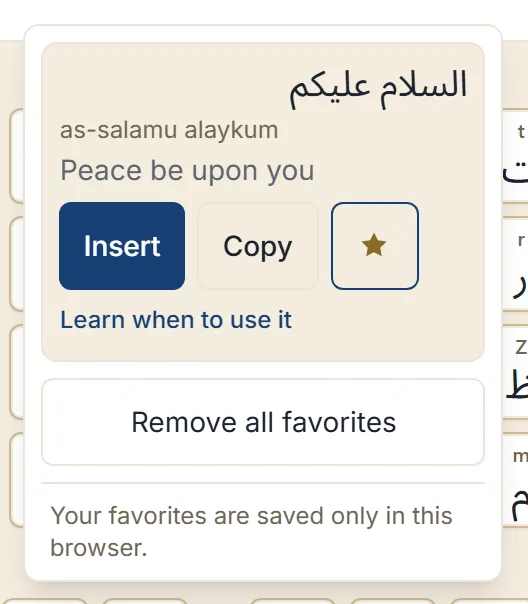
This is worth doing for the handful of phrases you genuinely repeat — the greeting you open every message with, the reply you send to good news. There is room for far more than most people need, so the limit is your patience rather than the list’s.
Each favorite can be removed on its own, and Remove all favorites clears the list after asking you to confirm.
History: getting a text back
History keeps your recent texts so you can restore one instead of writing it again.
The important detail is when an entry is added: not as you type, but when you do something with the text — copy it, share it, download it, search with it, or turn it into a card. A text you typed and abandoned is not recorded, and neither is one you only listened to.
There is one deliberate exception. Clearing the box saves a snapshot first, so Clear is recoverable — if you wipe something by accident, open History and restore it.
To restore: open History, find the text, and choose Restore. Because that replaces what is currently in the editor, it asks you to confirm first.
The list keeps your most recent texts, moving a text back to the top if you use it again rather than storing it twice. Older entries drop off the end as new ones arrive.
Turning history off, and deleting it
History is under your control:
- Save recent texts is a switch. Turn it off and nothing further is recorded.
- Delete removes one entry.
- Clear all empties the list, after confirming — it cannot be undone.
The panel says plainly that recent texts are stored only in this browser and can be deleted at any time. That is the whole arrangement: there is no account, and no copy anywhere else.
Where both lists live
Favorites and history are stored in the browser you are using, on that device only. They do not sync, because there are no accounts to sync them to.
Practically:
- A different browser, or a different device, starts empty.
- A private window starts empty and keeps nothing afterwards.
- Clearing your site data removes both.
- If you are on a borrowed or shared computer, that is worth knowing in both directions — nothing follows you home, and anything you save stays on that machine until you delete it.
The text in the main typing box is not saved on its own; only the entries described above are. Keeping your Arabic writing private covers everything stored, in one place.
Next step
Open the phrase library, star the three phrases you send most, and they will be one click away from now on. If you write longer messages from several phrases at once, building a message from ready phrases is the next thing to try.