Build a Full Arabic Message From Ready Phrases
Stack curated phrases into one message, choose how they join, and insert the result — without typing a word of Arabic or inventing any.
A greeting on its own is often too short. What you actually want to send is a greeting and a wish — السلام عليكم, then عيد مبارك, then كل عام وأنتم بخير — and typing all three is more work than the message deserves.
The message builder stacks phrases for you. You choose the parts and how they join; it puts them together.
Build one
- Open the Arabic keyboard and expand Insert Greetings & Phrases.
- Find a phrase and choose + Message rather than Insert. It appears under Your message.
- Add the next phrase the same way. Where the phrase you just added has curated continuations, Suggested next offers them — that is common for the Ramadan and Eid greetings, which are the ones most often sent as a pair.
- Set Join with for each gap: Space, the Arabic comma ،, or the waw و.
- When the line reads right, choose Insert into editor.
The finished Arabic drops into the typing box, where you can keep editing, copy it, share it, or turn it into a card.
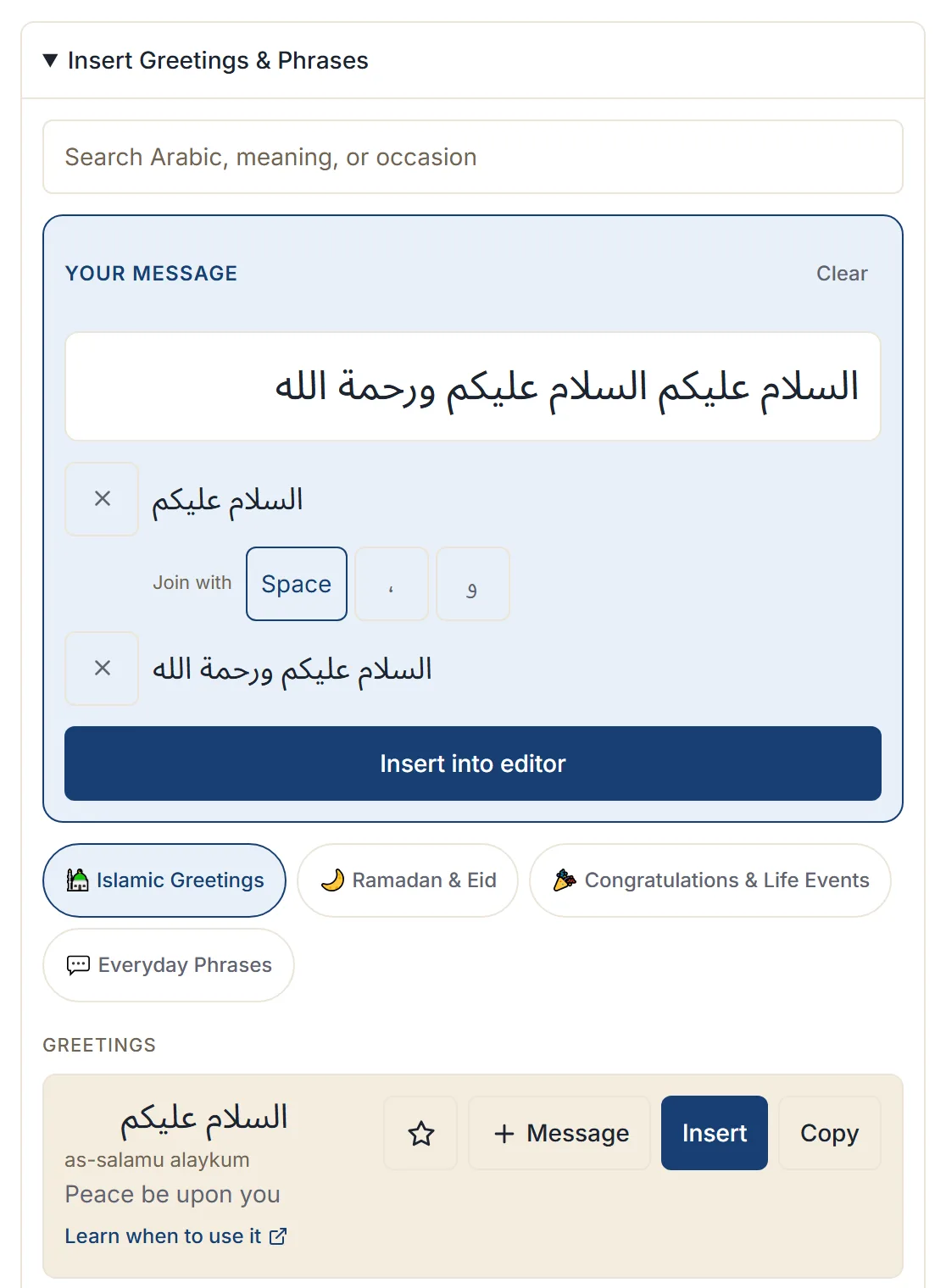
Choosing the join
The join is the small piece of text between two phrases, and it changes how the line reads:
| Button | Puts | Use when |
|---|---|---|
| Space | A space | The next phrase already reads correctly straight after the first |
| ، | The Arabic comma | You want a short pause, list-style |
| و | The waw, meaning “and” | You are deliberately joining two things with “and” |
Space is the default and is right most of the time, because the phrases are written to stand on their own. Reach for the comma when two wishes are being listed, and for the waw only when you genuinely mean and — a waw between two phrases that were not meant to be joined reads oddly.
It never invents Arabic
Worth being explicit, because this is what makes the feature trustworthy.
The builder does not generate text, does not conjugate anything, and does not modify the phrases you pick. The output is exactly the curated phrase wording from the library, with the join you chose between the parts. Nothing else is added.
That means a message you build is made of phrases that have been reviewed, and it will not contain a sentence nobody wrote. It also means the builder cannot fix a combination that does not make sense — choosing the phrases well is your job, and reading the line before inserting is worth the two seconds.
Adjusting the message
- Remove takes a phrase out, and the gap closes on its own — the joins stay consistent.
- Clear empties the whole message and starts again.
- Adding the same phrase twice is allowed, though it is rarely what you want.
Phrases stay in the order you added them, and there is no way to drag one up or down. If you want a different order, remove what is out of place and add it again at the end — with two or three phrases that is quicker than it sounds. You can also fix the order after inserting, since the line becomes ordinary text in the editor.
A worked shape
Messages that work tend to follow the same shape: greeting, occasion, wish.
- السلام عليكم → عيد مبارك → كل عام وأنتم بخير
- صباح الخير → بالتوفيق
- جمعة مباركة → تقبل الله منا ومنكم
Each part is a phrase in the library, and each one is a single tap. The whole message is three taps and a join.
After you insert
The line is ordinary text in the editor, so everything else is available:
- Copy it into a message.
- Create card to send it as an image — see turning a phrase into a card.
- Keep typing around it if you want to add something of your own.
You can also edit the inserted Arabic directly. It is text like any other, and nothing re-converts it.
Next step
Open the Arabic keyboard, expand the phrase panel, and build the message you would send for the next occasion coming up. If you are not sure which phrases go together, start from a Ramadan or Eid greeting and follow Suggested next — those pairings are curated rather than guessed.