Type Arabic on Any Device Without Changing Settings
Use the same Arabic keyboard on a phone, tablet, work laptop, or a borrowed computer — what carries across devices, and what deliberately does not.
Adding an Arabic keyboard to a device is a settings change, and it sticks around. It adds an entry to the language switcher, it changes what the autocorrect expects, and on a phone it means one more layout to swipe past every time you type. On a device that is not yours, it is a change you are leaving for someone else.
Typing Arabic in a browser tab avoids all of that. This page covers what that is actually like on each kind of device, and what does and does not follow you between them.
The same page, three different experiences
On a computer with a physical keyboard
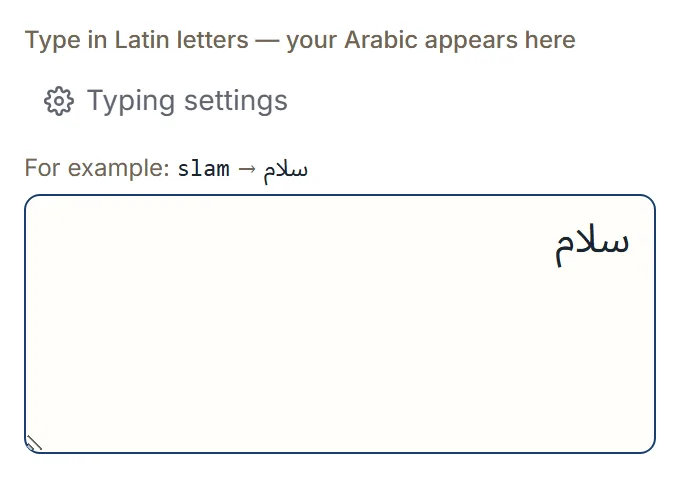
The fastest of the three. You type Latin letters and Arabic appears: slam gives سلام, ktab
gives كتاب. Your hands never leave the keys, and the on-screen keyboard is there for the
occasional character you cannot place.
This is where transliteration earns its keep — you are typing at your normal speed in a script your keyboard does not have.
On a phone
Two routes, and most people use both.
Your phone’s own on-screen keyboard types the Latin letters, and the page converts them, exactly as on a computer. Or you tap the Arabic letters directly on the page’s own keyboard, which is often more comfortable on a small screen because you are choosing a letter rather than spelling a word.
The whole interface is built for touch — the keys and action buttons are sized to be tapped accurately rather than aimed at.
On a tablet or a shared family device
Behaves like the phone, with more room. The advantage here is not technical: it is that you can write your message without changing anything for the next person who picks the device up.
What follows you between devices, and what does not
This is the part worth being precise about, because there are no accounts here and nothing syncs.
| Carries across devices? | |
|---|---|
| Your typing style | No — stored in that browser |
| Your own custom letter rules | No — stored in that browser |
| Recent texts and favorites | No — stored in that browser |
| The text you are writing | No — it is in the page you have open |
Everything is stored locally, per browser. Set your typing style on your laptop and your phone will not know about it; you set it again there, once.
That is a real trade, and it is the direct consequence of not having accounts. What you get for it is that there is no profile of your writing anywhere to sync from — your text stays in your browser unless you choose an action such as search, share, copy into another app, or download or export.
Moving the text, not the settings
Since the settings do not travel, the text has to. From the editor you can:
- Copy it and paste it wherever you are going next.
- Share it to a messaging app or by email — on a phone this opens the system share sheet, so every app you have is a destination.
- Download it as plain text, a Word document, or a PDF, built on the device.
Sharing to yourself — a note app, a message to your own number — is the simplest way to get a piece of Arabic from a borrowed computer onto your own phone.
Things that genuinely differ by device
Worth knowing before you rely on them:
- Listening to your text uses the Arabic voice your browser and device provide, not one we supply. Where no Arabic voice is installed, the button is not shown at all. Treat it as a reading aid rather than a pronunciation guarantee.
- Sharing a card as a file depends on what the browser supports. Where it cannot share files, you download the image and attach it yourself.
- A private window starts from the defaults every time, on every device, by design.
Next step
Open the Arabic keyboard on whichever device is nearest and type one word. If that device is not yours, keeping your writing private covers exactly what is stored and how to remove it.