Use the Virtual Arabic Keyboard
Tap Arabic letters instead of typing them — what each of the four key groups holds, how the Latin hints teach you the keys, and when tapping beats typing.
Not every letter is worth spelling out. When you need a character you cannot place, a diacritic you use rarely, or a symbol you have never typed, it is quicker to look at a keyboard and click the one you want.
The on-screen keyboard sits below the typing box and does exactly that. It writes into the same box as your typing, so you can move between the two mid-word.
Everything is visible at once
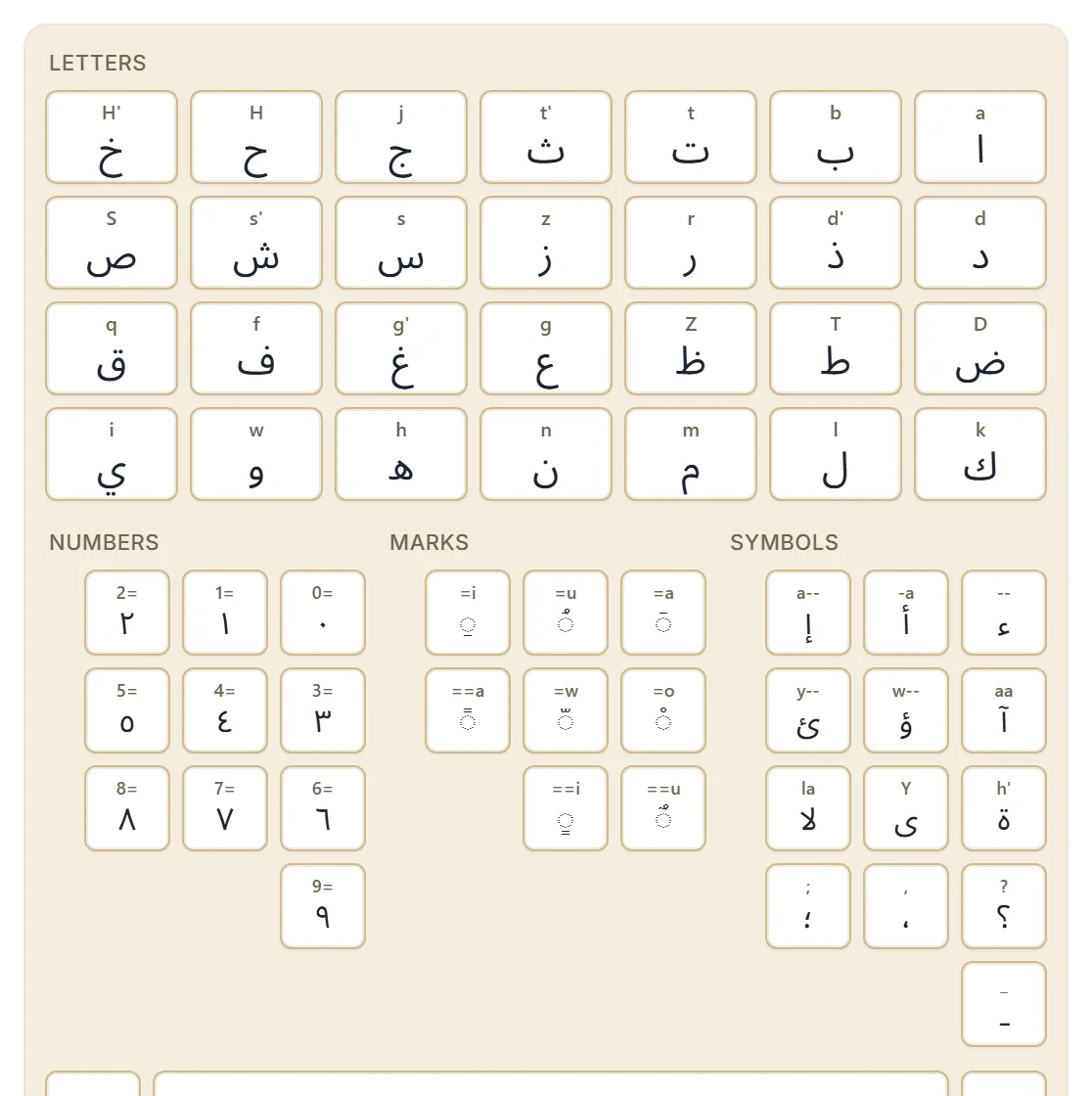
There is no mode to switch and nothing to page through. The keys are laid out in labelled groups, all on screen together:
| Group | Holds |
|---|---|
| Letters | The 28 Arabic letters in alphabetical order — the main grid |
| Numbers | The Arabic-Indic digits, ٠ to ٩ |
| Marks | The harakat — fatha, kasra, damma, sukun, shadda, and the tanwin |
| Symbols | The hamza forms and Arabic punctuation |
Letters take the top half; Numbers, Marks and Symbols sit below them side by side. Underneath is a control row with Backspace, Space and Enter, so you can finish a short piece of text without touching the physical keyboard at all.
Every key teaches you its shortcut
This is the part that is easy to miss. Each key shows a small Latin hint above the Arabic letter — the sequence that would produce that letter if you typed it instead.
So the ش key shows the trigger for ش, and the ح key shows the trigger for ح. Use the on-screen keyboard for a week and you will have absorbed the typed equivalents without setting out to learn them.
The hints follow your typing style. Switch from Traditional to English and the hints change with it, because the sequence that produces ش is different in each. That makes the panel a live reference for whichever style you have chosen rather than a fixed chart.
Tapping a key inserts that exact character
An on-screen key inserts its letter directly at the cursor. It is not converted, and it does not go through the transliteration table — what is on the key is what lands in the box.
Two useful consequences:
It finishes the word you were typing. If you were part-way through a Latin sequence, tapping a key commits what you had and then inserts the new character. So you can type most of a word and tap the awkward letter.
It reaches spellings typing cannot. The clearest case is the bare hamza. Typing s'a-- gives
شإ, because a-- is a longer match than -- and wins. Type s'a, then tap ء in the Symbols
group, and you get شاء. See tricky Arabic letters for the
rest of that family.
Marks attach to the letter before them
The Marks keys are combining characters — they are drawn on a dotted circle on the key to show that they sit on top of something else.
Tapping one attaches it to the character immediately before the cursor. So the order is always: type or tap the letter, then tap the mark. Getting a mark on the wrong letter almost always means it was tapped one position too early or too late; backspace removes marks one at a time. Adding harakat covers the typed equivalents.
When tapping is the better choice
- On a phone, where choosing a letter can be more comfortable than spelling a word.
- For a letter you use rarely and would have to look up anyway.
- For diacritics, where seeing all the marks at once beats recalling eight sequences.
- For punctuation, since Arabic uses its own comma and question mark shapes.
- When a spelling will not come out by typing, as above.
For ordinary words, typing stays faster. Most people settle into typing the sentence and tapping the occasional character — which is what the two being in the same box is for.
Next step
Open the Arabic keyboard, scroll to the on-screen panel, and tap through the four groups to see what each holds. Then type a word and tap one letter into the middle of it — that combination is how most people end up using it.