Make Islamic Greeting Cards With Your Own Text
Turn an Arabic greeting, dua, or your own words into a card you can download or share, using the card maker in your browser.
Most greeting-card images you find online carry someone else’s words. This walks through making one with your own — an Eid greeting, a dua for a friend, a line for your family — starting from text you type and ending with an image you can send. It takes a few minutes, and it happens entirely in your browser.
Before you start
You need a browser and the message you want on the card. You don’t need an account, and you don’t need to install anything. If you don’t have the Arabic written yet, that’s fine — you’ll write it in the first step.
Steps
-
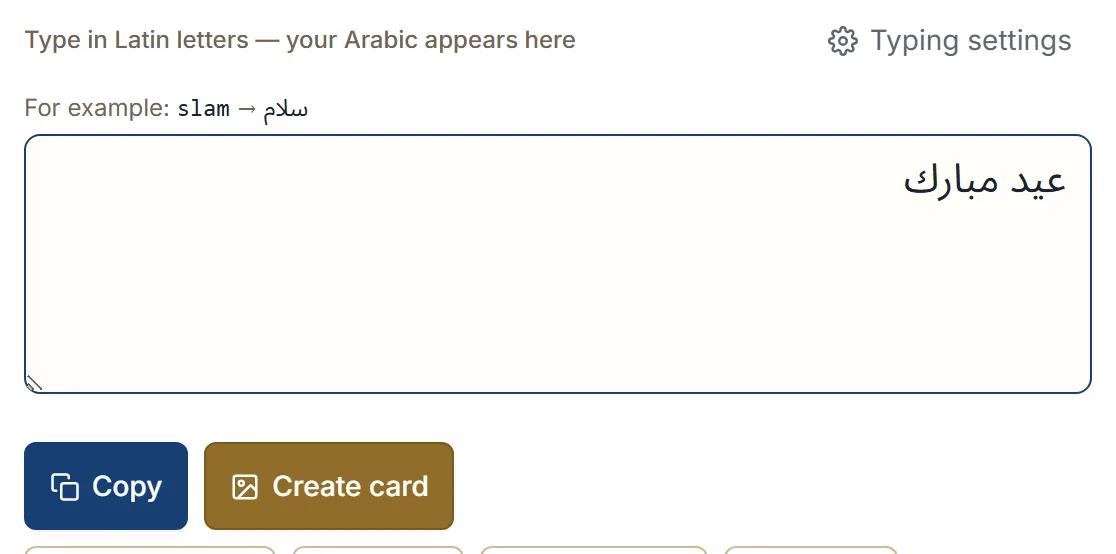
Write your message in the editor on the Arabic keyboard page. You can type with Latin letters and get Arabic as you go, tap the on-screen Arabic keyboard, or paste Arabic you already have. To start from a ready-made greeting instead, insert one from the phrase library — عيد مبارك, رمضان مبارك, or جمعة مباركة, for example — then edit it. Adding a name or a line of your own is what makes the card yours rather than generic.
-
Open Image Studio with the card button. Your message comes with you; the editor stays the place where the text lives, so if you want to change the wording you go back to it rather than retyping in the Studio.
-
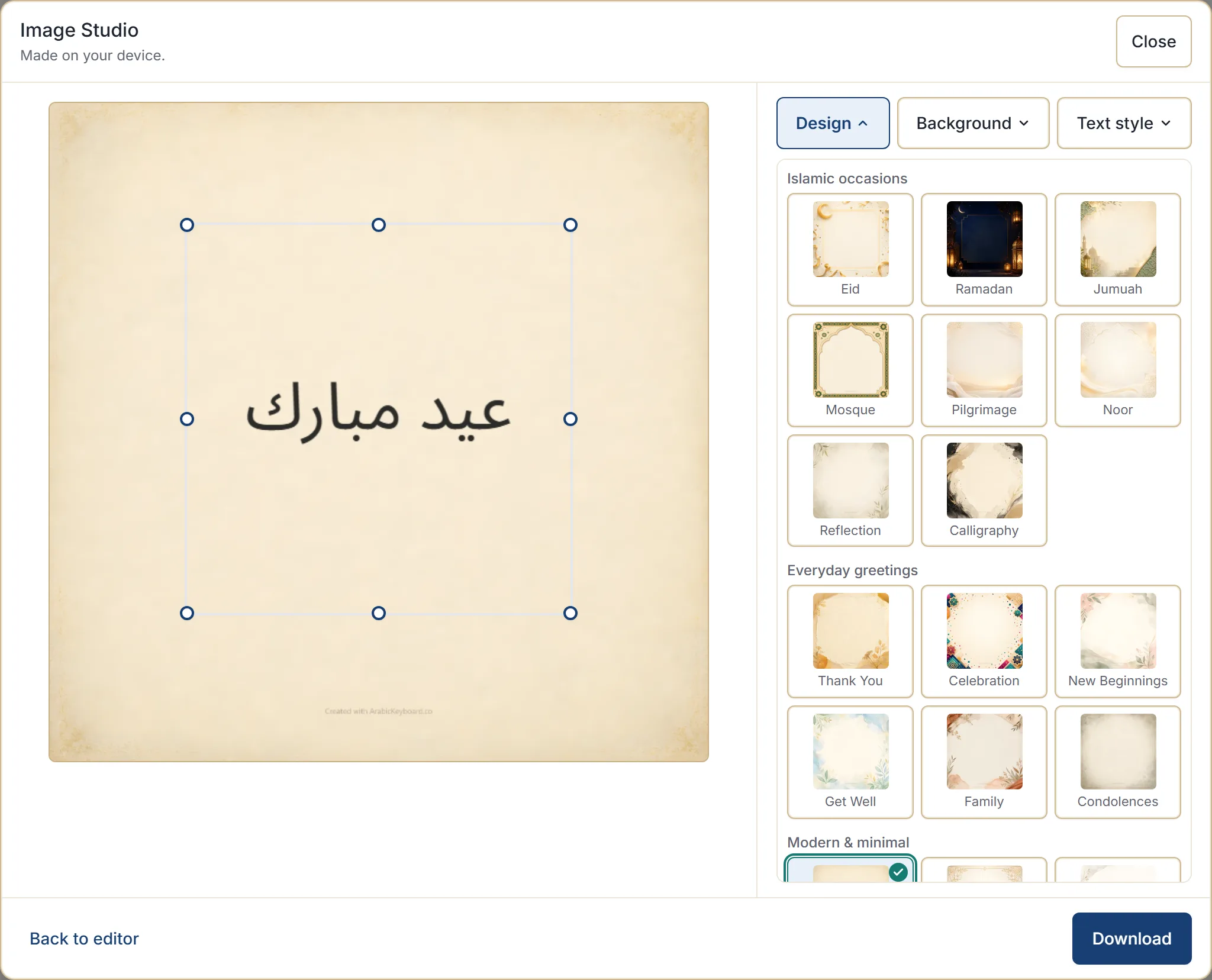
Choose a design. Designs are grouped by occasion and mood, such as Islamic occasions, everyday greetings, and modern or minimal styles. Pick the one that fits the tone of your message; nothing is chosen automatically based on what you wrote.
-
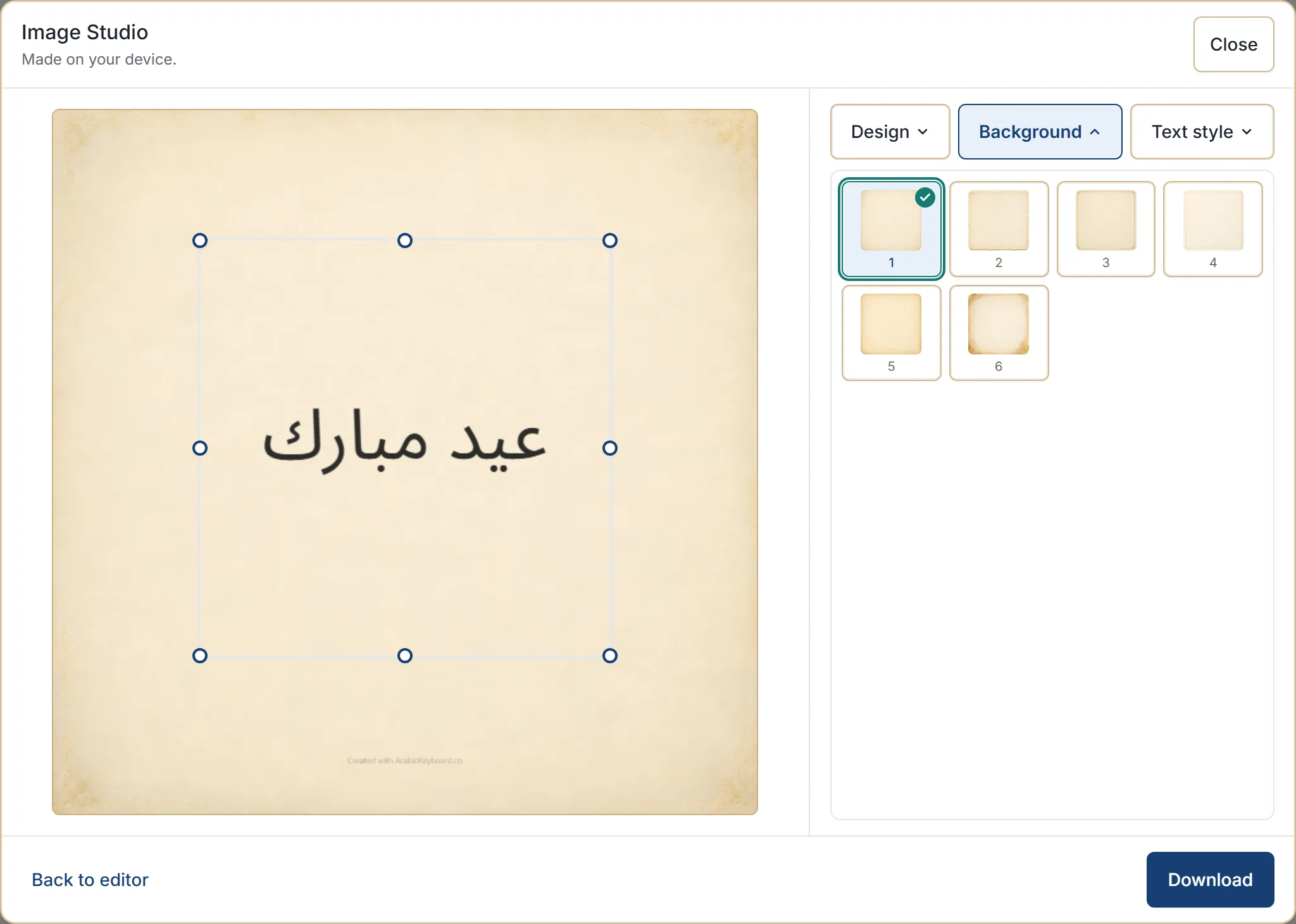
Choose a background. Each design has several backgrounds — different artwork, same character. The preview updates as you go, so switching between a few is the fastest way to see which one suits your message.
-
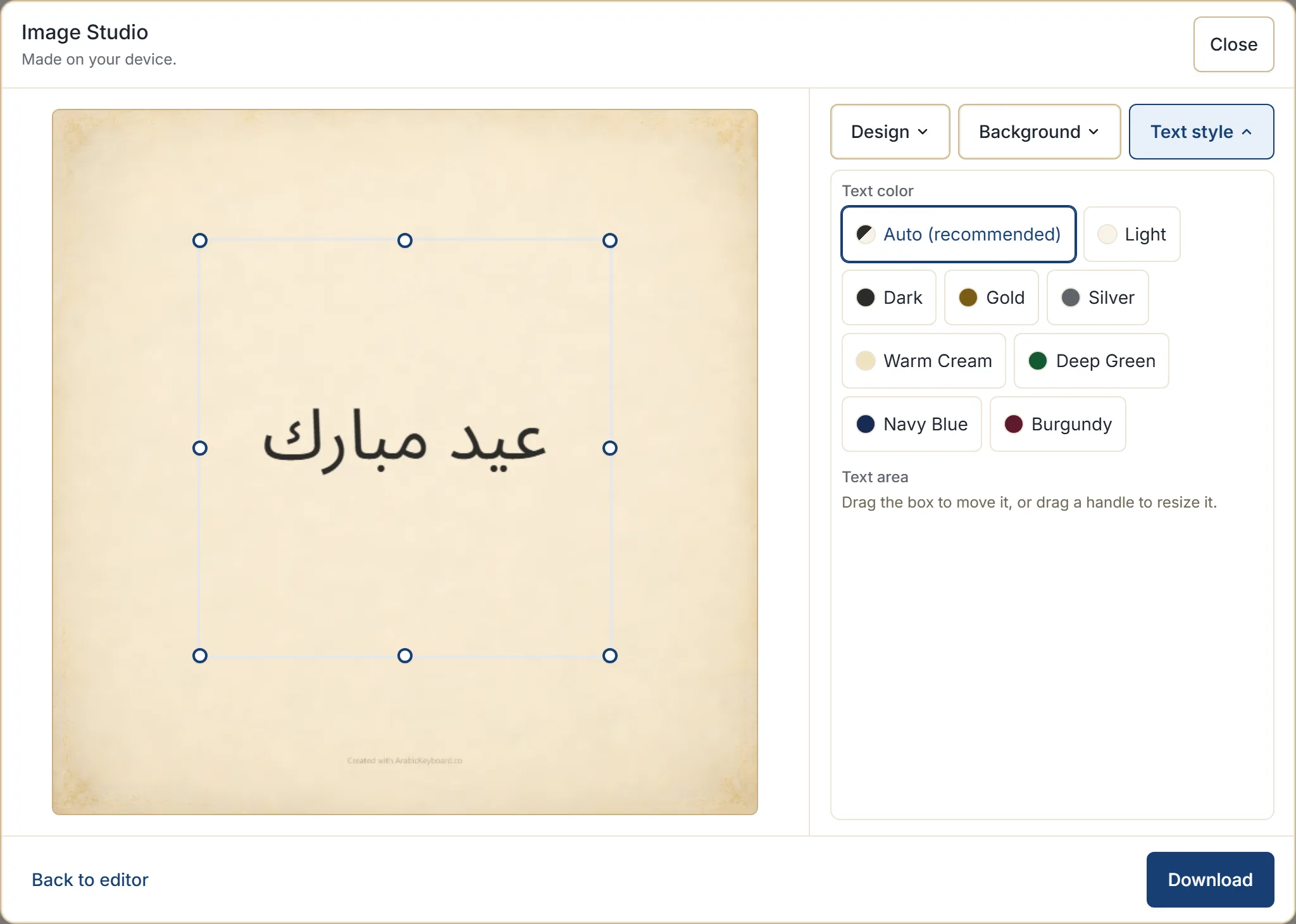
Adjust the text if you want to. Text color has an automatic setting that picks a readable ink for the background you chose, and you can override it — light, dark, gold, silver, and others. You can also drag the text box to move it, or drag a handle to resize it, and reset it if you’d rather go back to where it started.
-
Download the card as a PNG image. On devices where the browser supports sharing files, a Share button appears next to it and opens your device’s share options, so you can send the card straight to a messaging app.
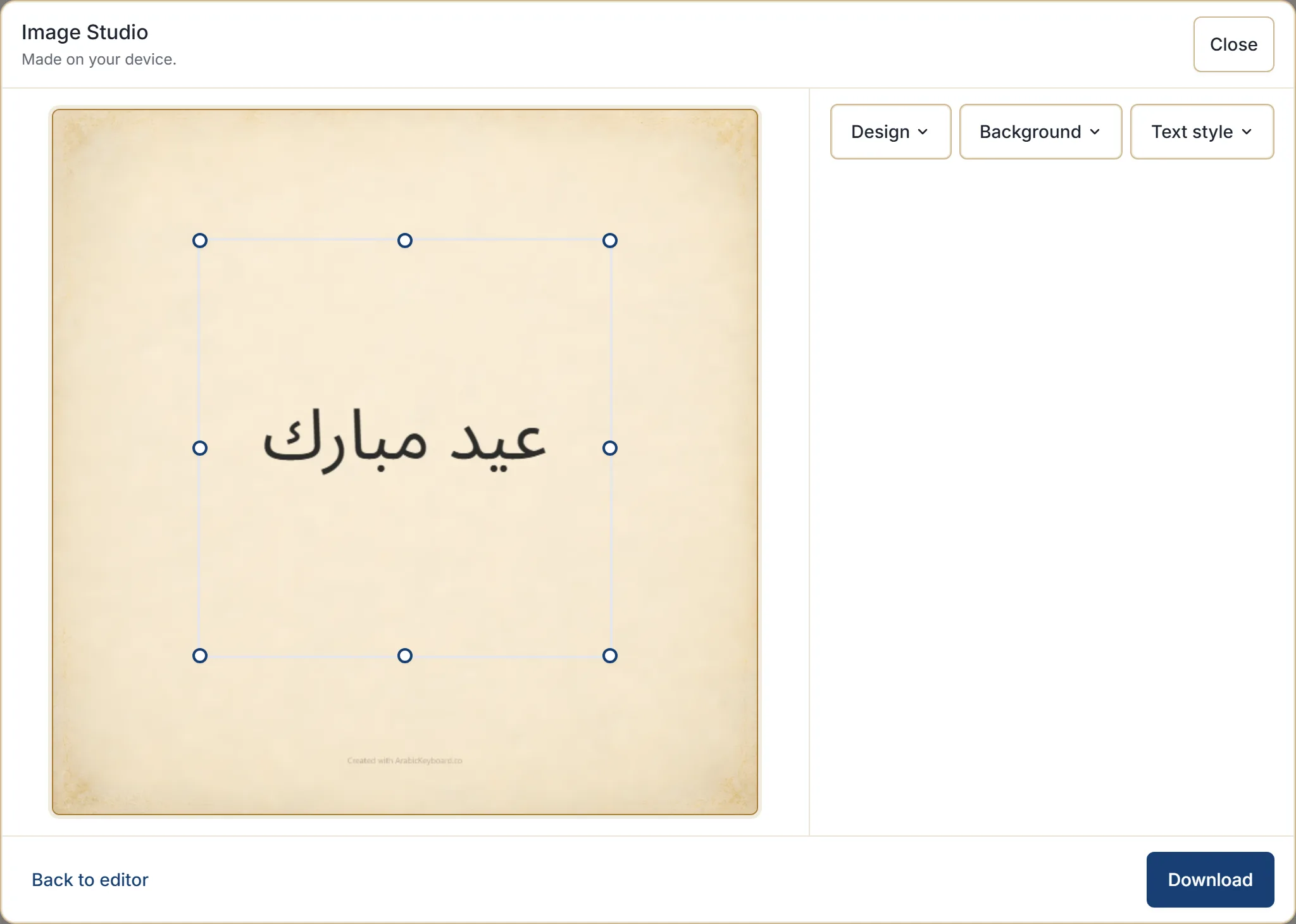
Result
You have an image with your own Arabic message on artwork made for Arabic text — ready to send, print, or keep. The card is created on your device: your message isn’t uploaded, and the finished card leaves your browser only when you download or share it yourself.
If it doesn’t work
The Studio says your message doesn’t fit. Each design keeps your words inside a set area at a size that stays readable, so a long message can genuinely run out of room. It won’t shrink your text to a size no one can read, or crop it. Shorten the message, give the text box more space, or pick a design with a roomier writing area.
The background or the Arabic font didn’t load. Both are fetched from the network. Check your connection and use the retry option.
There’s no Share button. File sharing isn’t available in every browser. Download the card and attach it the usual way.
Occasions people make these for
Ramadan and Eid are the busiest, but the same flow works for a Jumuah greeting, a dua for someone traveling or sick, a wedding or new baby in the family, a thank-you, or a condolence message. A calm, restrained design is available for condolences — you choose it deliberately, as with every other design.
One thing worth saying plainly: this is a design tool. It doesn’t check, verify, or endorse the religious content of what you write, and it doesn’t decide which occasion your message belongs to. The words are yours, and so is the judgment about whether they’re right for the person you’re sending them to.
Next step
Open the Arabic greeting card maker and write your message, or browse the Arabic phrases library if you’d like a greeting to start from. If you’re unsure which phrase suits the occasion, the common Islamic phrases guide explains when each one is used.