Create Arabic Greeting Cards Online
Turn Arabic text into a card image you can send — the four choices that make a card, what you get at the end, and where each one is worth changing.
A message is easy to send and easy to scroll past. A card is the same words with somewhere to sit, and for a greeting — an Eid wish, a congratulation, a thank you — it is what people actually send each other.
Making one here is four choices: what it says, what it looks like, what is behind it, and where the words sit. Everything else has a sensible default.
Start with the message
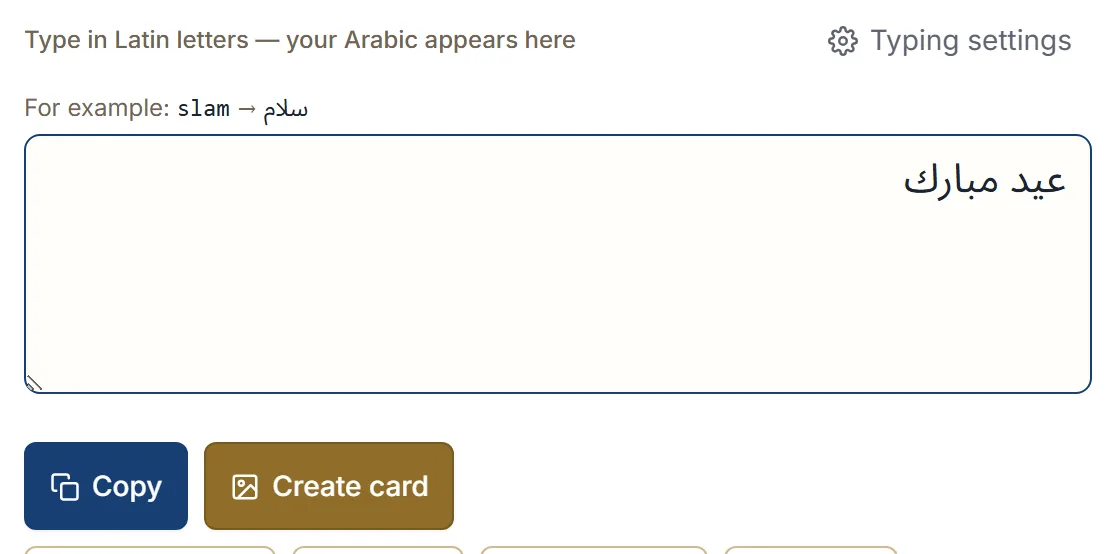
Type your Arabic in the Arabic keyboard first, then click Create card. Whatever is in the box becomes the card’s text.
You do not have to compose it yourself. Insert a greeting from the phrase library, or build a longer line from several phrases — see building a message from ready phrases. If the card is for a specific occasion, turning a phrase into a card starts from the phrase instead.
Short works better than long. A card is read at a glance, and a greeting of a few words fills the space properly. A paragraph will fit, but it will not look like a card.
Choose a design
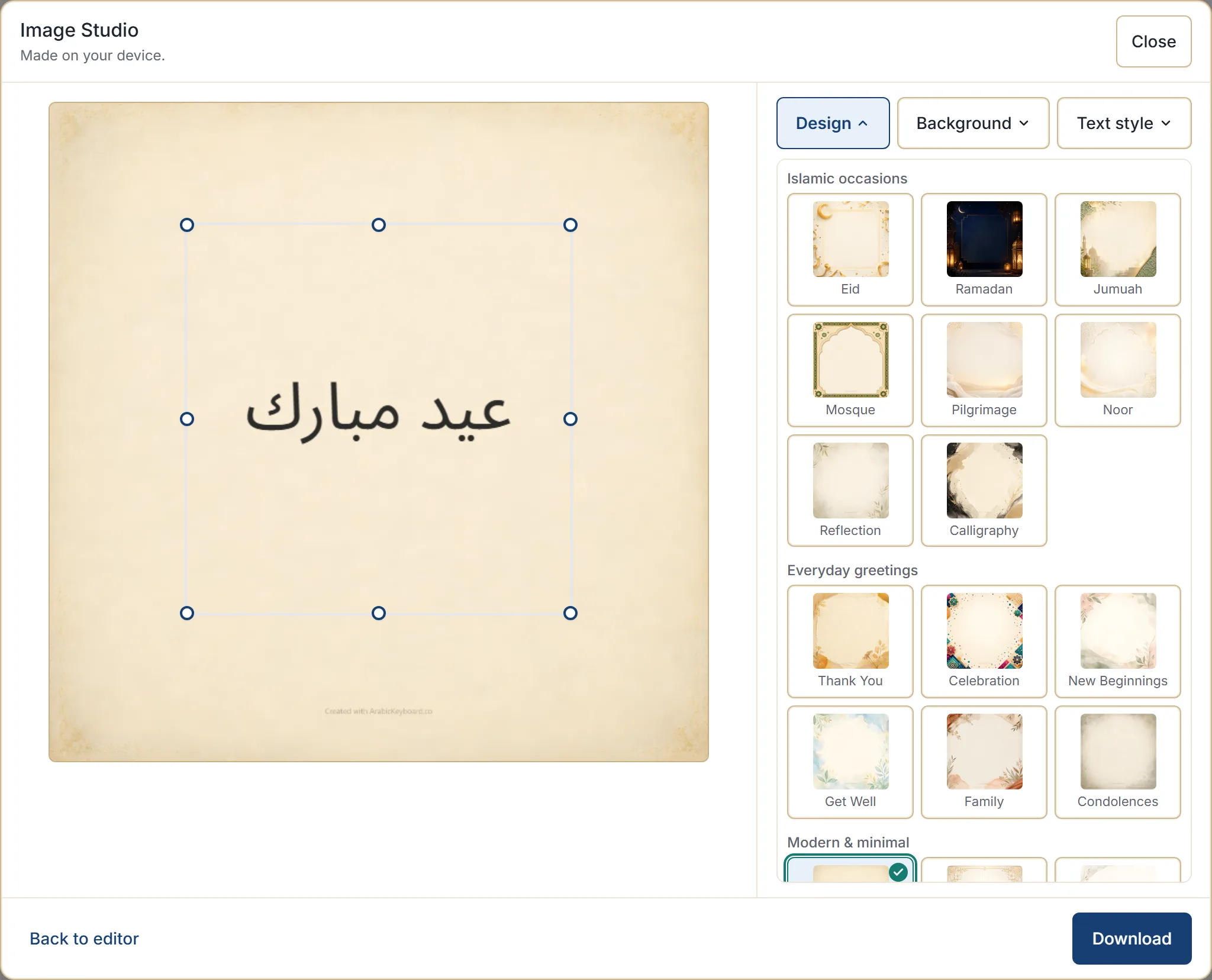
Design is the overall look. There are designs grouped by what they are for — Islamic occasions, everyday greetings, modern and minimal, and a lighter set — so you can usually go straight to the right neighbourhood rather than scrolling the lot.
Pick the group that matches the occasion, then the design that matches the tone. Choosing a card design goes through what each group is for.
Choose a background
Each design comes with several backgrounds — same style, different image. Background cycles through them.
This is the quickest way to change a card’s feel without changing its character: a darker background for something formal, a lighter one for something warm, and so on. If your text becomes hard to read against one, that is what the text colour is for.
Check the text sits well
The preview updates as you go, and most of the time the defaults are right. Two controls are there when they are not:
- Text colour — set to Auto by default, which picks light or dark to suit the background. Gold, silver, and several deeper tones are available when you want a specific look.
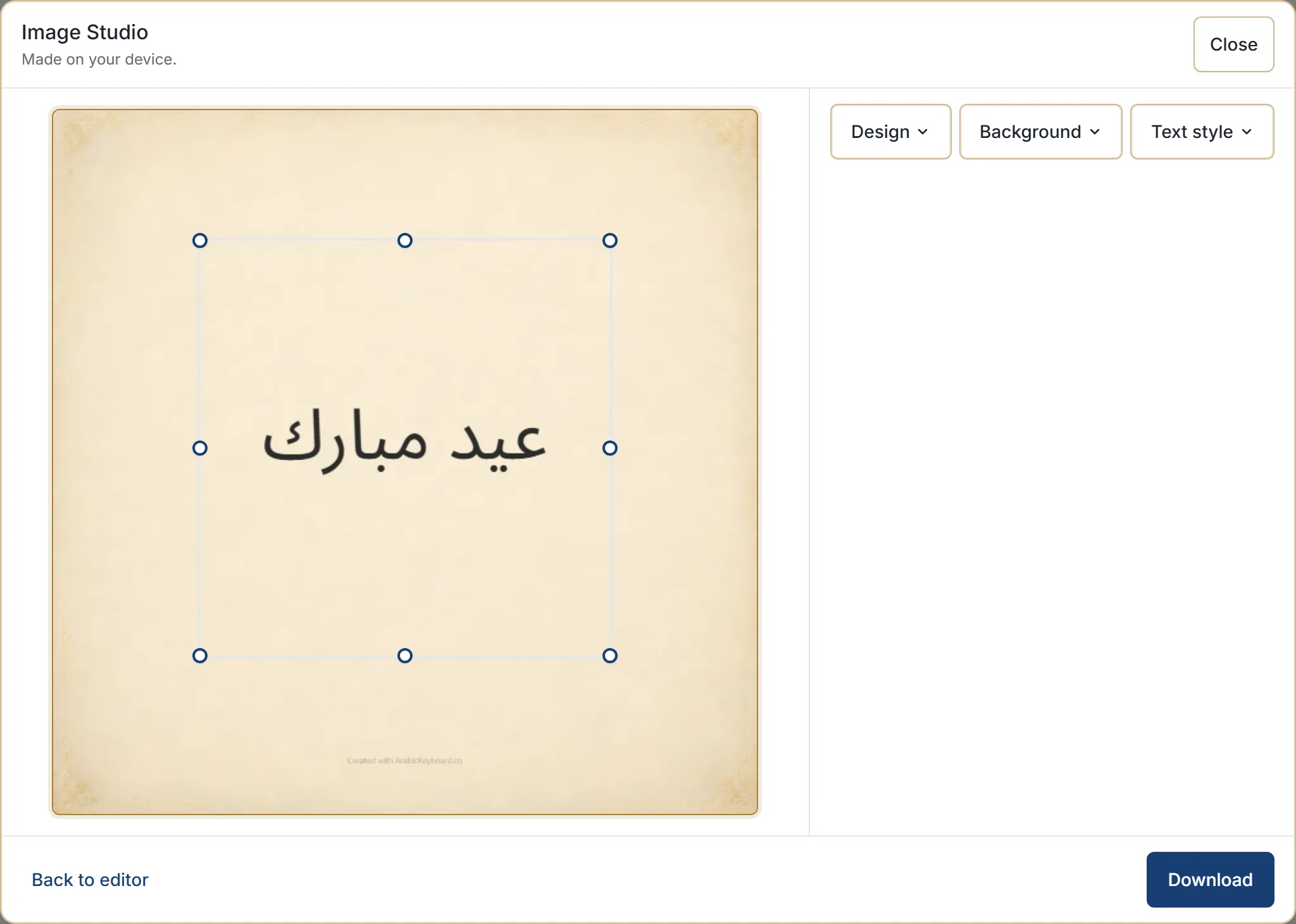
- Text area — the box the words sit in. Drag it to move it, drag a handle to resize it.
If your message will not fit, the studio says so and tells you what to do: give the text more space, shorten the message, or choose another design. Adjusting the text area, colour and background covers all of it.
Download it
Download saves the finished card to your device as a PNG. It is a standard image file, so it goes anywhere an image goes — a message, an email, a social post, a print shop.
Where your browser supports sharing files, a Share button appears alongside it and hands the image to your device’s share sheet. Where it does not, the button is not shown, and downloading then attaching does the same job in one more step.
The file is named after the site and the date. It never contains your message, the design name, or anything about the occasion — so the filename gives nothing away when you send it.
One thing to expect: the finished card carries a small Created with ArabicKeyboard.co line at the bottom of the artwork. It is deliberately faint, and it is part of the card rather than something you can switch off.
It is made on your device
The card is drawn in your browser, which the studio states on the panel itself. Your text is not uploaded to be rendered, and no copy of the finished card is kept anywhere but your own downloads.
Your text stays in your browser unless you choose an action such as search, share, copy into another app, or download or export.
If something is not right
- The text is cut off or refuses to render — enlarge the text area, shorten the message, or pick another design.
- The text is hard to read — change the background first, then the text colour.
- The background did not load — a connection problem; retry.
- You want to change the words — Back to editor returns you to the typing box with your text intact, and your design choices are remembered when you come back.
Next step
Type a greeting into the Arabic keyboard and click Create card — the default design produces a usable card immediately, so you can see the result before deciding what to change. For Ramadan or Eid, Ramadan and Eid cards starts from the right designs.