Create Your Own Arabic Keyboard Mappings
Use Make it yours to decide what a key writes — a digit for a letter, your own digraph, or a replacement for a built-in mapping you never use.
The four typing styles cover most spelling habits, but not everyone’s. If you keep typing a key and getting the wrong letter — or a letter you want has no key you would naturally reach for — you can add your own rule instead of retraining your fingers.
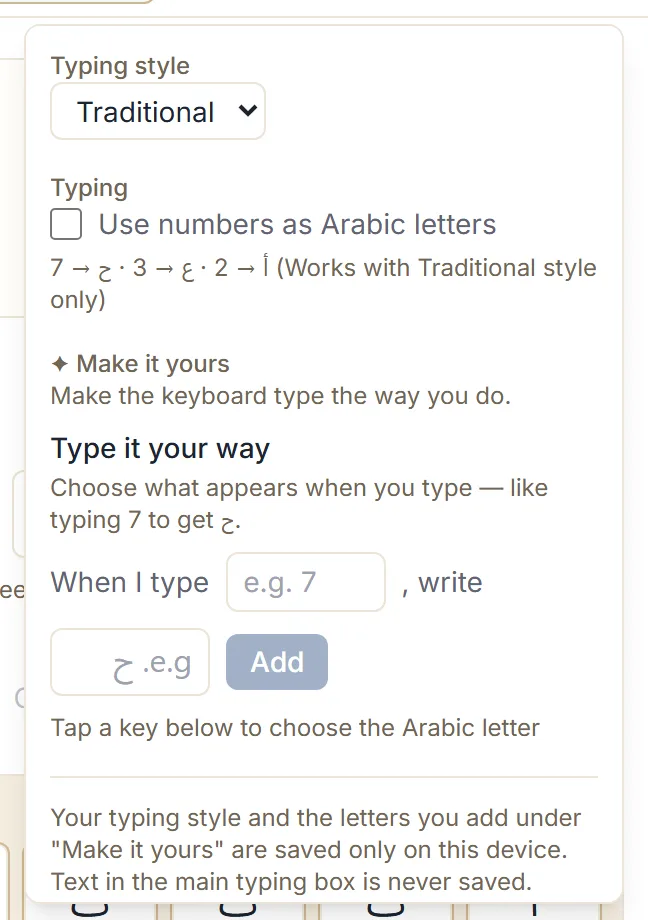
Make it yours sits inside Typing settings and lets you say: when I type this, write that.
Add your first rule
- Open the Arabic keyboard and click Typing settings.
- Scroll to Make it yours.
- In When I type, enter the key you want to change — a single character like
7, or a longer sequence likesh. - In the next box, enter the Arabic letter it should write. You can type it, or tap a key on the on-screen keyboard below — the panel says as much, and tapping a key fills the box for you.
- Click Add.
That is the whole flow. The rule takes effect immediately in the typing box. When you go back and Edit a rule you already have, the same button reads Save instead.
What a rule can do
Your rules sit on top of the typing style you have chosen, so everything else keeps working normally.
Give a digit a letter. Add 7 → ح and 7bibi gives حبيبي, while slam still gives سلام and
the Traditional apostrophes still work — s'kra still gives شكرا.
Add a digraph the style does not have. Traditional treats sh as two letters. Add sh → ش and
shkra gives شكرا, without leaving Traditional for anything else.
Use a key that currently does nothing. x has no Arabic meaning in Traditional and passes
through unchanged, which makes it free for whatever you like.
Replace a built-in mapping. In Traditional, g is ع. If you would rather it were غ, add the
rule — after which grbi gives غربي instead of عربي.
That last one deserves care. Changing a letter you already use rewrites every word containing it, so a rule that fixes one word can quietly break others. When you set a rule over a key that already does something, the keyboard tells you what that key currently writes and asks you to confirm.
Managing what you have added
Saved rules are listed under the heading confirming the keyboard now writes them your way, each with Edit and Remove. Start fresh clears all of them at once and asks first.
There is no limit worth worrying about, but a short list is easier to reason about than a long one. If you find yourself adding five or six rules that all point the same direction — digits for letters, say — you are probably describing one of the built-in styles, and switching to it is simpler than recreating it by hand. The typing style guide compares them.
Where the rules live
Your rules and your typing style are saved only on the device and browser you set them on. They are not tied to an account, because there are no accounts, and they do not follow you to another machine.
Practically, that means: set them up once per browser, and expect a private window or a different browser to start from the default. Clearing your site data clears them too.
The text in the main typing box is never saved.
When a rule does not seem to work
- Check it was added. A rule only exists once you have clicked Add — filling the two boxes and closing the panel does nothing.
- Check for a longer match. The keyboard always takes the longest matching sequence. A rule for
swill not fire insides', becauses'is longer and wins. - Check the style. Rules apply on top of your chosen style, so switching styles changes what the rest of your typing does around them.
Next step
Open Typing settings and add the one rule you would use most — for most people that is a digit standing in for a letter. If the keyboard is doing something unexpected after that, common typing problems covers the usual causes.