Make a Readable Arabic PDF Online
Turn Arabic text into a PDF that prints correctly — how the page is laid out, why the letters always join, and what to check before you send it.
Arabic PDFs go wrong in a characteristic way: the letters arrive separated instead of joined, or the diacritics collide with the line above, or the whole thing prints left-aligned. It usually happens when a tool treats Arabic as ordinary text and hopes the reader’s font copes.
This one is built the other way round, and the result is a page that looks the same wherever it is opened.
Making one
- Type or paste your Arabic into the Arabic keyboard.
- Check it reads correctly in the box — the PDF reproduces exactly what is there.
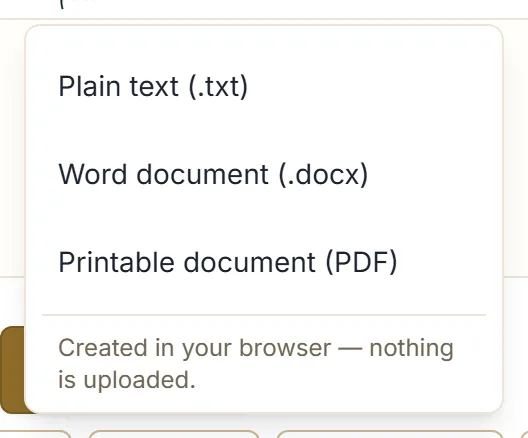
- Click Download, then Printable document (PDF).
The file is built in your browser and saved to your downloads. Nothing is uploaded.
What you get
An A4 portrait document that flows across as many pages as your text needs, with:
- A printable margin on all four sides, so nothing is lost to a printer’s unprintable edge.
- A fixed, comfortable body size — a document size rather than a headline size, chosen to stay readable in print.
- Generous space between the lines, so stacked diacritics have somewhere to go instead of touching the line above.
- A small footer on each page, with the page number.
Long text paginates on its own; you do not choose where the breaks fall.
Why the letters always join
Each page is drawn as a high-resolution image rather than as PDF text.
That is the whole reason it is reliable. Arabic letters change shape depending on their neighbours, and getting that right in a PDF depends on the font being embedded and the reader handling it properly — which is exactly what fails in the broken PDFs everyone has seen. Drawing the page instead means the shaping is settled before the file is written, so every reader and every printer shows the same thing.
The trade is worth stating plainly: you cannot select, copy, or search the text inside the PDF. For a document meant to be read or printed, that is usually fine. If it is not, export a Word document instead — the export guide compares the formats.
Before you export
The PDF is a faithful copy of the box, so anything wrong there will be wrong on the page. Worth thirty seconds:
- Read the Arabic once. Capitals and apostrophes are the usual culprits —
mrHbagives مرحبا,mrhbagives مرهبا, and nothing flags the second. - Decide about diacritics. Everyday prose does not use them. If you have added harakat for a teaching text, check they are on the right letters — see adding harakat.
- Put your paragraph breaks in. The line breaks you type are the ones the document uses.
- Check the length. The character and word counts under the box tell you roughly how many pages to expect.
Printing it
Print at actual size rather than “fit to page”. The document is already laid out for A4 with its own margins, and scaling it down shrinks the text and the margins together.
If your printer is set to a different paper size, choose A4 where you can. Otherwise letting the printer scale is fine for a draft, but expect slightly smaller text.
When a PDF is the wrong choice
- Someone needs to edit it — send the Word document.
- The text is going into another system — send plain text.
- It is a greeting rather than a document — a card image is a better fit than an A4 page. Creating Arabic greeting cards covers that.
Next step
Write a paragraph in the Arabic keyboard and export it, then open the file and look at how the lines sit. If it is going to a printer, print one page before committing to the whole thing.